


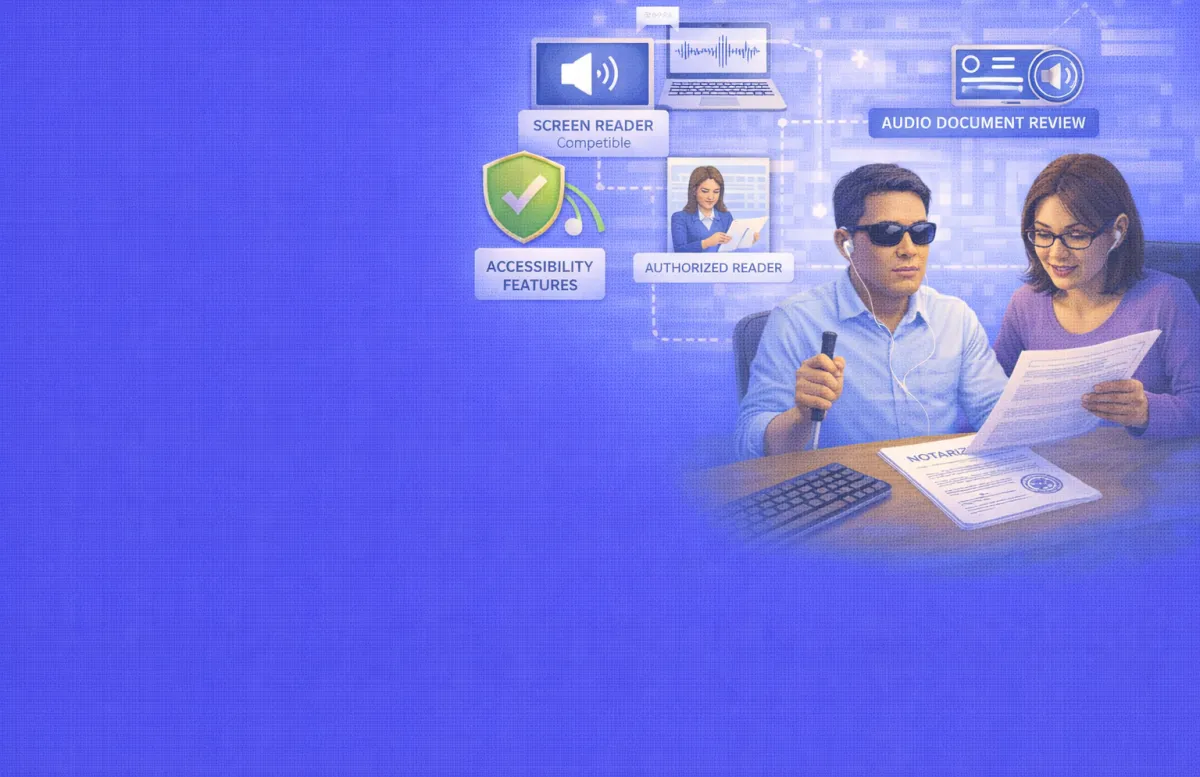

A blind woman opens a link to sign a power of attorney through a remote online notarization platform. Her screen reader begins announcing the page layout. Then it hits a signature field — a drag-and-drop box with no text label. The screen reader goes silent. She cannot find the field, cannot interact with it, and cannot sign the document. She closes her laptop in frustration.
This experience happens far too often. As one blind accessibility advocate described the problem: “Inaccessible signature fields are an inconvenience faced by the blind every day. We find them on government websites, doctors’ offices, and even when signing up for recreational activities.”
Close to 2.2 billion people globally live with some form of vision impairment, according to the World Health Organization. In the United States, roughly 12 million people age 40 and older have some level of vision impairment, including 1 million who are blind. For these individuals, online document signing and notarization present unique barriers that most platforms have not fully addressed.
Remote online notarization adds another layer of complexity. RON sessions rely on video, on-screen document review, and visual identity verification. The document appears on screen for the signer to read, review, and sign. For someone who navigates the digital world through screen readers, magnification software, or audio output, this visual workflow creates obstacles at nearly every step.
But the obstacles have solutions. Screen reader compatibility, audio document review, authorized readers, alternative signature methods, and thoughtful platform design can all make online notarization accessible to blind and low-vision users. The law supports these accommodations, the technology exists, and the only missing piece is wider awareness and adoption.
This guide covers what the law requires, how blind and low-vision signers can access online notarization today, what RON platforms should offer, how to prepare for a session, and what happens when the signer cannot read the document themselves.
What the Law Requires
Two legal frameworks protect the rights of blind and low-vision individuals seeking notarization services: the Americans with Disabilities Act and state notary laws.
ADA Obligations for Notarization Services
Title III of the ADA requires businesses that serve the public — including notary services and RON platforms — to provide auxiliary aids and services that ensure effective communication with people who have vision disabilities.
For blind and low-vision individuals, the ADA’s list of auxiliary aids includes qualified readers, information provided in accessible electronic formats, large-print materials, audio recordings, and screen reader-compatible documents and websites. The ADA also requires that web-based services meet accessibility standards. In April 2024, the Department of Justice published a rule requiring state and local government websites to conform to WCAG 2.1 Level AA standards. While this rule directly applies to government entities, it signals the direction for all web-based services, including private RON platforms.
Businesses cannot charge a surcharge for providing these accommodations. The cost of accessibility is a business expense. Small businesses may qualify for tax credits of up to $5,000 per year on IRS Form 8826 for eligible accessibility expenditures.
State Notary Laws on Blind Signers
A few states have specific procedures for notarizing documents for blind signers. Florida law, for instance, requires the notary to read the entire document aloud to a blind or illiterate signer before any signature takes place. The full text must be communicated, not just a summary.
Other states take a different approach. Some require the notary to read the document aloud only if the signer requests it. Others do not address blind signers specifically in their notary statutes. In those states, the general requirement applies: the notary must be satisfied that the signer understands the document’s nature and effect before proceeding.
Colorado’s notary law (CRS 12-55-110.5) provides broad language allowing notaries to use “signals or electronic or mechanical means” to communicate with signers who have physical disabilities. This language supports the use of screen readers, audio output, and other assistive technologies during a notarization.
The key principle across all states is consistent. The signer must understand what they are signing. The method of achieving that understanding can adapt to the signer’s needs. A blind person who has had the document read to them and confirms understanding meets the legal standard just as fully as a sighted person who reads it on screen.
How Blind and Low-Vision Users Navigate Online Documents
Understanding how blind and low-vision users interact with digital content helps explain where RON platforms succeed and where they fail.
Screen Readers
Screen readers convert on-screen text and interface elements into speech or Braille output. The most widely used screen readers include JAWS (Job Access With Speech), NVDA (NonVisual Desktop Access, a free open-source option used by over 250,000 people), and VoiceOver (built into Apple devices).
When a screen reader encounters a web page or document, it reads the content in a linear order. It announces headings, links, buttons, form fields, and text. But it can only read what has been properly coded. An image without alt text is invisible. A button without a label is silent. A signature field built as a visual drag-and-drop element with no keyboard equivalent is a dead end.
For online notarization, the screen reader needs to work across every step of the process: uploading documents, completing identity verification, answering knowledge-based authentication questions, reviewing the document, navigating to signature fields, applying the signature, and interacting with the notary through the video interface.
Screen Magnification
Low-vision users who can see some screen content often use magnification software. Built-in tools like Windows Magnifier and macOS Zoom enlarge portions of the screen. Third-party tools like ZoomText offer additional features like enhanced cursor visibility, color contrast adjustments, and text smoothing.
For these users, RON platforms need clean, uncluttered layouts. Small text, low-contrast color schemes, and busy interfaces create barriers. Document viewing tools that allow pinch-to-zoom or adjustable zoom levels help low-vision users read document text at a comfortable size.
High-Contrast and Color Settings
Some forms of vision impairment affect color perception or contrast sensitivity. Users may need high-contrast display modes (white text on a black background, for example) to read screen content. RON platforms that override these system-level settings or use fixed color schemes that cannot be adjusted create unnecessary barriers.
The Authorized Reader: A Critical Accommodation
When a blind signer cannot read a document through assistive technology — because the document is a scanned image rather than searchable text, or because the platform does not support screen readers — a human reader fills the gap.
What an Authorized Reader Does
An authorized reader reads the entire document aloud to the blind signer before the notarization proceeds. The reader goes through every page, every paragraph, every clause. The signer listens, asks questions, and confirms understanding.
The reader is not the notary. In most situations, the notary should avoid reading the document to the signer, because doing so could be seen as interpreting the document’s meaning — which borders on the unauthorized practice of law. However, several states (including Florida) specifically require or permit the notary to read the document aloud to a blind signer. The distinction depends on state law.
When the notary does not read the document, the signer typically brings their own authorized reader — a trusted friend, family member, attorney, or professional reader. The reader is present for the signer’s benefit, not as a party to the transaction.
Rules Around Who Can Serve as a Reader
The reader should ideally be a neutral party with no interest in the document. A family member who benefits from the document being signed has a potential conflict of interest. An attorney or professional reader provides greater impartiality.
That said, practical reality often means a family member or close friend serves as the reader, especially for personal documents like wills or powers of attorney. In these cases, the notary should document who served as the reader and note the relationship in their journal.
The Reader’s Role During a RON Session
In a remote online notarization session, the authorized reader can join the video call as a third participant (if the platform supports multi-party sessions) or sit physically with the signer. The reader reads the document aloud while the signer and notary participate in the session.
The notary can hear the document being read and observe the signer’s reactions. After the reading is complete, the notary asks the signer whether they understand the document and whether they are signing voluntarily. The signer confirms, and the notarial act proceeds.
This process adds time to the session. A 30-page loan package can take an hour or more to read aloud. Both the signer and the notary should plan for a longer appointment than a standard session.
What RON Platforms Should Offer for Accessibility
RON platforms vary widely in their accessibility. Blind and low-vision users should evaluate platforms based on specific features.
Screen Reader Compatibility
The platform’s entire workflow — from account creation through document signing — should work with JAWS, NVDA, and VoiceOver. This means every button, link, form field, and interactive element needs proper ARIA (Accessible Rich Internet Applications) labels. Navigation should work entirely through keyboard commands without requiring a mouse.
WCAG 2.1 Level AA compliance is the minimum standard. This means sufficient color contrast for text, keyboard operability for all functions, text alternatives for non-text content, and content that adapts to different display settings.
Docusign’s eSignature platform, for example, reports striving toward WCAG 2.1 Level AA standards, with keyboard-only navigation, ARIA labels for interactive elements, and screen reader access to document viewers. Their mobile apps integrate with VoiceOver and TalkBack. However, independent audits have found gaps, including inconsistent alt text for embedded images and complex nested menus that confuse screen readers.
No platform is perfect. But the gap between “striving toward compliance” and “fully accessible” matters enormously to blind users who cannot work around the broken parts.
Accessible Signature Methods
Traditional digital signature fields often require dragging a cursor to draw a signature — an action that screen reader users cannot perform. Accessible alternatives include typed signatures (the signer types their name), click-to-sign buttons (the signer activates a clearly labeled button), PIN or password authentication (the signer enters a secure code), and uploaded signature images (the signer uploads a pre-made image of their signature).
Each of these methods carries the same legal weight as a drawn signature. RON platforms should offer at least one accessible signature method that works entirely through keyboard navigation and screen reader interaction.
Audio Document Review
Some platforms offer text-to-speech functionality that reads the document content aloud within the platform. This eliminates the need for a separate screen reader to interpret the document, though it depends on the document being in a text-searchable format rather than a scanned image.
If the platform does not offer built-in audio review, the signer may need to access the document separately through their own screen reader before the notarization session. This means the platform must allow the signer to download or access the document in an accessible PDF format before the live session begins.
Adjustable Display Settings
Low-vision users need the ability to enlarge text, increase contrast, and adjust the layout without breaking the platform’s functionality. Zoom controls for document viewing are essential. The platform should also respect the user’s system-level display settings — if someone runs their operating system in high-contrast mode, the platform should not override that preference.
Multi-Party Video Support
If the signer needs an authorized reader or assistant during the session, the platform must allow additional participants in the video call. A platform that limits sessions to only the notary and signer cannot accommodate a reader.
How to Prepare for an Online Notarization as a Blind or Low-Vision Signer
Preparation removes most of the friction from the process. These steps help blind and low-vision users set up a successful session.
Request the Document in Advance
Ask to receive the document in an accessible electronic format before the notarization session. An accessible PDF — one with tagged text, proper heading structure, and logical reading order — works with screen readers. A scanned image PDF does not.
If the document arrives as a non-accessible file, request a tagged version or ask your attorney to provide one. Some PDF tools can add accessibility tags to existing documents.
Review the document thoroughly before the session using your preferred screen reader or magnification tool. Address any questions with your attorney beforehand. The notary cannot explain the legal meaning of the document during the session.
Contact the Platform and Notary in Advance
Tell the RON platform about your accessibility needs before scheduling. Ask whether their platform supports screen readers, what signature methods they offer, and whether a third participant (reader or assistant) can join the session. Give the platform time to arrange any accommodations.
Ask the notary how they handle the verbal ceremony for blind signers. Specifically ask whether they will read the document aloud (if your state requires or permits it) and how they will guide you to signature fields.
Test the Technology
Run a test session before the real appointment. Open the RON platform link, navigate through the interface with your screen reader or magnification tool, and identify any barriers. If the platform uses knowledge-based authentication, make sure the questions are accessible — that they appear as readable text, not as images.
Test your camera and microphone. The video call portion of the session requires both. Position your camera so the notary can see your face for identity verification. Good lighting helps the notary compare your face to your photo ID.
Arrange a Reader if Needed
If you need someone to read the document to you during the session, arrange this in advance. Choose someone with no interest in the document whenever possible. Let the notary and the platform know a reader will participate.
If the reader will join remotely, confirm the platform supports a third video participant. If the reader will sit with you in the same room, let the notary know so they are not surprised by another person appearing on camera.
Have Your ID Ready
Identity verification in RON requires a government-issued photo ID. Have it within reach before the session starts. If you need help positioning the ID in front of the camera, your reader or assistant can help with that.
What No Other Guide Covers: The Pre-Session Document Gap
Every guide about notarization for blind signers discusses the need to read the document aloud. Almost none address the timing problem that creates the biggest practical barrier.
Where the Gap Appears
Most RON platforms present the document to the signer during the live session. The signer sees it on screen, reviews it, and signs it — all in real time. For sighted users, this works smoothly. For a blind user, this is the moment where everything stalls.
The screen reader may not work with the document viewer. The document may be a scanned image with no text layer. The platform may not allow the signer to download the file. Even if the document is accessible, reading a multi-page legal document through a screen reader during a live video session — while the notary waits — creates enormous time pressure.
The result is a gap between when the signer needs to understand the document and when they actually get meaningful access to it.
How to Close the Gap
The solution is to separate document review from document signing. The signer should receive and review the document days before the session, not during it. This means the RON platform or the party requesting the notarization must send the document to the signer in advance, in an accessible format.
During the pre-session review, the signer uses their own screen reader, magnification software, or authorized reader to go through the document at their own pace. They ask questions, consult their attorney, and reach full understanding before the session even begins.
When the live session starts, the notary confirms that the signer has reviewed the document, understands its contents, and is signing voluntarily. The formal notarial act proceeds without the time pressure of a real-time document review.
This approach works within existing notary law. No state requires that the signer see the document for the first time during the notarization session. The requirement is that the signer understand the document at the time of signing. How and when they achieved that understanding is up to them.
Why This Matters
For complex documents — loan packages, trust agreements, real estate transactions — the pre-session review transforms the experience from stressful and rushed to manageable and thorough. A blind signer who has spent two days reviewing a 50-page mortgage package with their attorney and screen reader comes into the session confident and prepared. A blind signer who encounters that same package for the first time during a live video call faces an impossible task.
Platforms and notaries who proactively send documents in advance, in accessible formats, make online notarization genuinely accessible rather than technically available but practically unusable.
Common Mistakes That Create Barriers
Several avoidable errors undermine accessibility for blind and low-vision users.
Sending Documents as Image-Only PDFs
A PDF created by scanning a paper document produces an image — pixels on a page, not text. Screen readers cannot read images. If the document arrives as a scanned PDF, the blind user has no way to access its content independently. Always send tagged, text-based PDFs.
Using Unlabeled Form Fields
Signature fields, date fields, and checkboxes need text labels that screen readers can announce. A field labeled only with a visual “Sign Here” sticker is invisible to screen reader users. Accessible platforms label every field with descriptive text like “Signer 1 signature — click to sign.”
Requiring Mouse-Based Interactions
Drag-and-drop signature placement, mouse-only navigation, and hover-dependent menus all exclude users who navigate by keyboard. Every action the signer must take should work through keyboard commands alone.
Overriding System Accessibility Settings
Some platforms force their own color schemes, font sizes, and display preferences, overriding the user’s system-level settings. A user who runs their operating system in high-contrast mode for readability loses that setting when the platform applies its own styling. Accessible platforms respect user preferences.
Not Allowing Pre-Session Document Access
Restricting document access to the live session creates the pre-session document gap described above. Platforms should allow signers to receive and review documents in advance, especially when the signer has disclosed a visual impairment.
Frequently Asked Questions
Can a blind person use remote online notarization?
Yes. A blind person can use RON if the platform supports screen readers, offers accessible signature methods (typed signature, click-to-sign, or PIN authentication), and allows pre-session document review. An authorized reader can also join the session to read the document aloud. The signer must still verify their identity and confirm understanding.
Does the notary need to read the entire document aloud to a blind signer?
It depends on state law. Florida requires notaries to read the entire document aloud to blind or illiterate signers. Other states require it only if the signer requests it. Some states do not address the issue directly. In all cases, the signer must understand the document before signing. If the signer has reviewed the document independently through a screen reader or reader beforehand, the notary may only need to confirm understanding.
What are accessible alternatives to drawing a signature on screen?
Typed signatures (typing your name), click-to-sign buttons, PIN or password authentication, and uploading an image of a handwritten signature are all accessible options. Each carries the same legal weight as a drawn signature. The RON platform should offer at least one method that works through keyboard-only navigation.
Can I bring someone to read the document to me during the session?
Yes. An authorized reader can participate in the RON session, either as a remote participant on the video call or sitting with you in person. Choose a reader with no personal interest in the document whenever possible. Let the notary and platform know in advance that a reader will be present.
What screen readers work with RON platforms?
JAWS, NVDA, and VoiceOver are the most widely used screen readers. Platform compatibility varies — some RON platforms work well with these tools, while others have significant gaps. Test the platform with your screen reader before the notarization session. Contact the platform’s accessibility support team if you encounter issues.
Can I review the document before the notarization session?
You should. Ask the platform or the party requesting the notarization to send you the document in an accessible PDF format days before the scheduled session. Review it at your own pace using your preferred assistive technology. This separates document review from document signing and eliminates the time pressure of real-time review during a live session.
What if the RON platform is not accessible?
If the platform does not support screen readers or lacks accessible signature methods, you can request accommodations under the ADA. If the platform cannot or will not accommodate your needs, consider using a different RON platform with better accessibility features, or request an in-person notarization with a mobile notary who can read the document aloud and guide you through the process.
Who pays for accessibility accommodations during notarization?
Under the ADA, the service provider (the notary or RON platform) bears the cost of providing reasonable accommodations. They cannot charge you a surcharge for accessibility features, a reader, or additional time needed during the session. Small businesses may offset these costs through the Disabled Access Credit on IRS Form 8826.
Conclusion:
Blind and low-vision users deserve full, independent access to online notarization services. The technology to make this happen exists — screen readers, accessible PDF formats, keyboard-navigable interfaces, alternative signature methods, and audio document review. The legal framework supports it through the ADA and state accommodation laws.
The biggest remaining barrier is not technological. It is awareness. Too many RON platforms treat accessibility as an afterthought rather than a design priority. Too many notarization workflows assume the signer can see the screen. And too few guides exist to help blind and low-vision users understand their options and assert their rights.
That starts to change when signers, notaries, and platforms all understand what accessible notarization looks like. Send documents early. Use accessible formats. Offer keyboard-navigable signature fields. Support screen readers. Allow authorized readers. And give every signer the time and tools they need to understand what they are signing.
For a RON platform committed to accessible document signing with flexible verification and accommodation options, BlueNotary provides remote online notarization tools built to serve all users.